> ## Documentation Index
> Fetch the complete documentation index at: https://cometchat-22654f5b-docs-angular-v5-docs-update.mintlify.site/llms.txt
> Use this file to discover all available pages before exploring further.
# Prepare Your App For Background Updates
> Guide to maintaining real-time connection in background state for iOS apps using CometChat SDK.
* **Purpose:** Keep real-time connection alive when app enters background
* **Enable:** Add Background Modes capability → Enable "Background fetch" and "Remote notifications"
* **Behavior:** Maintains connection for a few seconds in background
* **Use case:** Update UI with new messages when switching between apps
* **Related:** [Connection Status](/sdk/ios/connection-status) · [WebSocket Connection](/sdk/ios/web-socket-connection-behaviour)
In iOS, when the user enters the background state, the real time connection breaks with the server. If the user comes inside the chat window or in the conversation list, it won't update the new messages received from the real time server until fetched from the API.
To keep user interaction alive, you can add our service which keeps the real time connection alive in background state for a few seconds. If the user is constantly switching between multiple applications, this service will help update real time updates on the UI.
## Background updates behaviour
This below table is applicable only when [these steps are followed](/sdk/ios/prepare-your-app-for-background-updates#step-1-add-background-modes-in-capabilities).
autoEstablishSocketConnection usage can be found in [Managing Web-Socket connections manually](/sdk/ios/managing-web-socket-connections-manually).
| | Value | Behaviour |
| ----------------------------- | ----- | -------------------------------------------------------------------------------------------------------------------------------------------------------------------------------------------------------------------------------------------------------- |
| autoEstablishSocketConnection | true | Connection is maintained in background for 30 seconds and after that it is killed. |
| autoEstablishSocketConnection | false | 1. If `CometChat.connect()` is called and app goes to background the connection is maintained for 30 seconds and after that connection is terminated. 2. If `CometChat.disconnect()` is called and app goes to background the connection not maintained. |
Follow the steps below to prepare your app for background states.
***
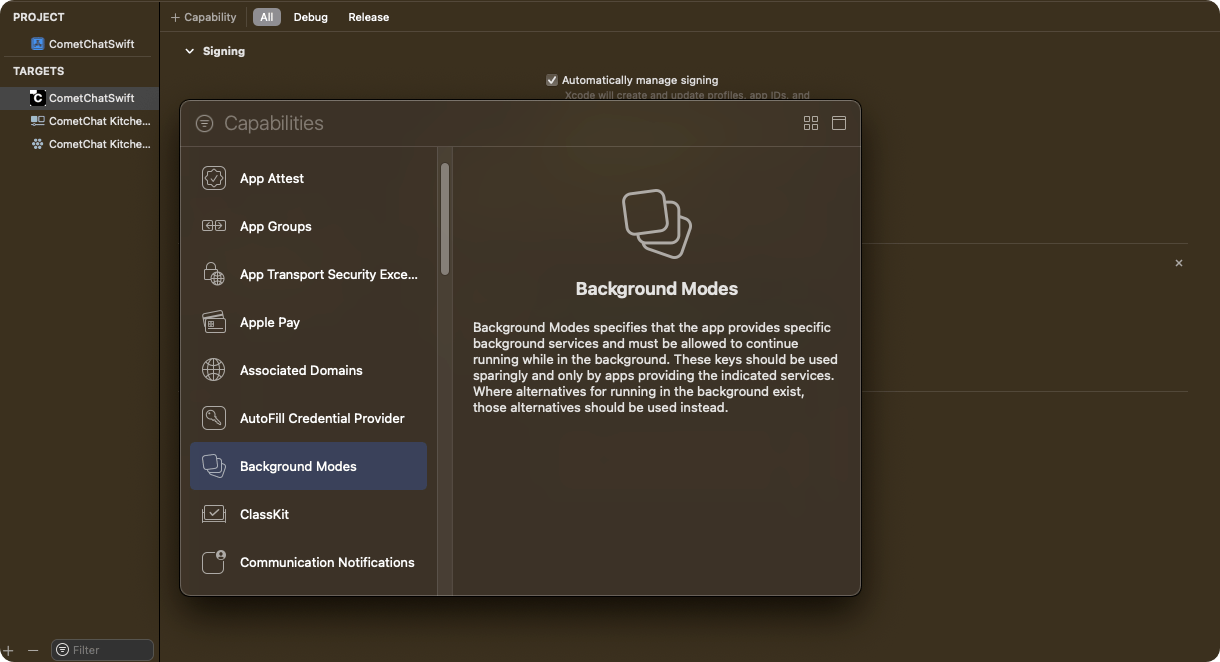
## Step 1. Add Background Modes in Capabilities
Click on Targets -> Project -> \[+ Capability] -> Add 'Background Modes' section.
 ***
## Step 2. Select Background modes for processing
Select 'Background Fetch' and 'Background Processing' options by ticking them.
***
## Step 2. Select Background modes for processing
Select 'Background Fetch' and 'Background Processing' options by ticking them.
 ***
## Step 3. Add Code in Application class to configure background services for different states.
Add `CometChat.configureServices` method in application class or scene delegate class as shown below.
```swift theme={null}
func applicationWillResignActive(_ application: UIApplication) {
CometChat.configureServices(.willResignActive)
}
func applicationDidEnterBackground(_ application: UIApplication) {
CometChat.configureServices(.didBackground)
}
```
1. As per the iOS standard guidelines, this service will keep alive for few seconds in background services in the system. After few seconds it will get terminated automatically by the system.
2. This service is only available after SDK **v4.x.x** & **UI Kit v4.x.x**
***
## Step 4. Check background service is running
You can check the background service is running or not using `CometChat.BackgroundTaskEnabled()` method. It will return **`true`** if service is running else it will return `false`.
```swift theme={null}
if CometChat.backgroundTaskEnabled() {
print("Background service is running, it will automatically update UI.")
}else{
print("Background service is stopped, Please refresh messages or conversations here to update.")
}
```
***
***
## Next Steps
Monitor the SDK connection state in real time
Understand default WebSocket connection lifecycle
Take full control of WebSocket connections
Set up push notifications for your iOS app
***
## Step 3. Add Code in Application class to configure background services for different states.
Add `CometChat.configureServices` method in application class or scene delegate class as shown below.
```swift theme={null}
func applicationWillResignActive(_ application: UIApplication) {
CometChat.configureServices(.willResignActive)
}
func applicationDidEnterBackground(_ application: UIApplication) {
CometChat.configureServices(.didBackground)
}
```
1. As per the iOS standard guidelines, this service will keep alive for few seconds in background services in the system. After few seconds it will get terminated automatically by the system.
2. This service is only available after SDK **v4.x.x** & **UI Kit v4.x.x**
***
## Step 4. Check background service is running
You can check the background service is running or not using `CometChat.BackgroundTaskEnabled()` method. It will return **`true`** if service is running else it will return `false`.
```swift theme={null}
if CometChat.backgroundTaskEnabled() {
print("Background service is running, it will automatically update UI.")
}else{
print("Background service is stopped, Please refresh messages or conversations here to update.")
}
```
***
***
## Next Steps
Monitor the SDK connection state in real time
Understand default WebSocket connection lifecycle
Take full control of WebSocket connections
Set up push notifications for your iOS app